.svg)




Most B2B Google Ads accounts are optimising for the wrong thing. They're tracking form fills, counting thank-you page views, and feeding that data into Smart Bidding, then wondering why the leads that come through don't convert into pipeline.
The problem is structural. A B2B buying journey doesn't end when someone submits a contact form. It ends when a deal closes, sometimes 30, 60, or 90 days later, after sales calls, demos, and procurement sign-off. Google Ads has no visibility into any of that unless you give it the data.
That's what offline conversion tracking is for. It closes the loop between your ad clicks and your CRM outcomes, so the algorithm learns from qualified pipeline signals rather than raw lead volume.
Before we get into the setup, here's what this guide covers:
- Why form fill tracking alone actively degrades Smart Bidding performance in B2B accounts
- How to capture GCLIDs, map CRM stages, and import conversions back into Google Ads
- How to turn on enhanced conversions for leads to improve match rates and attribution accuracy
What offline conversion tracking actually means in a B2B context
Standard conversion tracking tells Google what happens on your website. Offline conversion tracking tells Google what happens after someone leaves it.
In practice, it works like this: when a prospect clicks your ad, Google assigns a unique identifier to that click called a GCLID (Google Click ID). You capture that ID alongside the lead's details when they submit a form. Later, when that lead progresses to a meaningful stage in your CRM, an SQL, a qualified opportunity, a closed deal, you send that event back to Google Ads, matched to the original GCLID. Google can then see which campaigns, keywords, and audiences are actually generating pipeline, not just enquiries.
Key concept: The GCLID is the connective tissue between your ad spend and your CRM data. Without it, offline conversion tracking cannot work.
The CRM events worth sending back to Google Ads:
- Sales Qualified Lead (SQL): lead has been reviewed and accepted by sales
- Qualified Opportunity: a deal has been created with a realistic chance of closing
- Closed Won: the deal has been signed and revenue is confirmed
- Demo Booked / Proposal Sent: useful intermediate stages in longer sales cycles
Enhanced conversions for leads goes one step further. Rather than relying solely on the GCLID, it also uses hashed first-party data email address, phone number captured at the point of form submission. This improves match rates and makes attribution more durable as cookie restrictions tighten.
The 5-step setup: from click to CRM to Google Ads
This is the full workflow, from enabling the right account settings through to importing CRM data back into Google Ads. Each step builds on the last, so the order matters.
Step 1: Enable auto-tagging and verify GCLID capture
Auto-tagging must be turned on in your Google Ads account. This is what appends the GCLID parameter to every ad click URL. Without it, there is no click identifier to match against later.
Once auto-tagging is active, you need to capture that GCLID on every landing page where a lead form exists. The standard approach is to add a hidden field to your form and use a short JavaScript snippet (or a Google Tag Manager variable) to read the GCLID from the URL and pass it into that field on page load. When the form is submitted, the GCLID gets stored alongside the lead's contact details.
One critical detail: the GCLID is case sensitive. Store it exactly as it appears in the URL. A single character mismatch means the conversion cannot be matched back to the original click.
Step 2: Store the GCLID in your CRM
Every lead record that comes in from paid search needs to carry its GCLID. Whether you're using HubSpot, Salesforce, or another CRM, create a custom field for it and make sure your form-to-CRM integration passes the value through.
Aim for a GCLID capture rate of 70% or above across your inbound paid search leads. Anything lower suggests a capture issue — either the hidden field isn't firing consistently, or the CRM integration is dropping the value.
Step 3: Create offline conversion actions in Google Ads
In your Google Ads account, go to Goals, then Conversions, and create a new conversion action. Select "Import" as the conversion type, then choose your data source. Name each conversion action to match the CRM stage it represents — something like "SQL - Offline" or "Closed Won - Offline" makes reporting much cleaner.
Set your conversion window to reflect your actual sales cycle. If deals typically take 60 days from first click to close, a 30-day window will miss a significant portion of your revenue.
Step 4: Turn on enhanced conversions for leads
Google now recommends enhanced conversions for leads as the preferred method over standard GCLID-only import. To enable it, go to your conversion action settings and turn on enhanced conversions for leads. You'll need to accept Google's customer data terms.
Once active, your Google tag or GTM setup will capture hashed versions of the email address and phone number submitted on your lead forms. These are sent to Google alongside (or instead of) the GCLID, improving match rates in cases where the GCLID is missing or expired. Advertisers using first-party data alongside GCLIDs have seen a median 10% increase in reported conversions compared to standard offline import.
Step 5: Import or sync your CRM data back to Google Ads
Once the setup is in place, you need a mechanism to push CRM stage progressions back into Google Ads. Your options depend on your tech stack and volume:
- Google Ads Data Manager: the simplest path for most teams; connect a Google Sheet or supported CRM directly
- Native CRM integration: HubSpot and Salesforce both have direct Google Ads connections that can automate the sync
- Google Ads API: for teams with developer resource who want full control and real-time imports
- CSV upload: manual but viable for lower-volume accounts or as a starting point
Whichever method you use, each import record needs four things: the GCLID (or hashed user data for enhanced conversions), the conversion name exactly as it appears in Google Ads, the conversion date and time, and optionally a conversion value if you want to enable value-based bidding later.
Which CRM stages should you send back to Google Ads?
The stages you choose to import determine what Smart Bidding optimises for. Get this wrong and you've built the infrastructure but still pointed the algorithm at the wrong signal.
The guiding principle is simple: import stages that represent genuine commercial progress, and only use them as primary bidding signals if they have enough monthly volume to give the algorithm something to learn from. Google generally needs 30 or more conversions per month at the campaign level to exit the learning phase reliably.
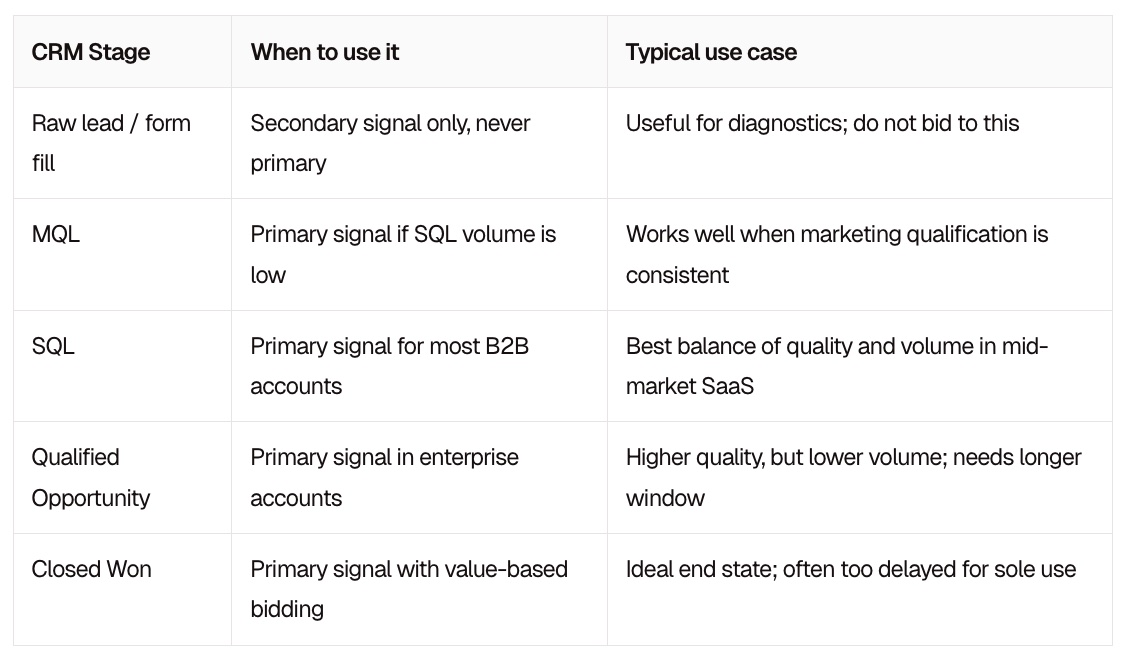
If your average deal takes 90 days to close, importing only Closed Won means Google is bidding on data that's nearly three months old. In that case, SQL or Opportunity is a better primary signal, with Closed Won added as a secondary event to inform longer-term learning.
The goal is to find the earliest CRM stage that reliably predicts revenue, and use that as your primary conversion action.
Common mistakes that ruin B2B offline conversion tracking
Even with the right setup in place, a few recurring errors undermine the whole system.
Using GA4 imports as primary bidding signals. GA4 is a valuable diagnostic tool, but it should not drive Smart Bidding. Native Google Ads conversions connected to your CRM are the right primary signal. Our guide to B2B conversion tracking covers why this distinction matters in more detail.
Inconsistent GCLID capture. If your hidden field only fires on some form submissions, or your CRM integration drops the value intermittently, your match rate collapses. Audit GCLID presence in your CRM records regularly.
Importing too many conversion events. Every event you mark as a primary conversion action becomes a bidding signal. Uploading raw leads, MQLs, SQLs, and closed won all as primary actions creates noise. Keep one clean primary signal per campaign.
Ignoring conversion lag. B2B sales cycles routinely run 30 to 90 days. If you're evaluating campaign performance before that window closes, you're drawing conclusions from incomplete data.
How to know your setup is working
Run through these checks once your imports are live:
- GCLIDs are present on paid search lead records in your CRM (aim for 70%+ capture rate)
- Enhanced conversions diagnostics show no critical errors in Google Ads
- Imported conversions are appearing in your conversion report within a few hours of upload
- SQL rate, opportunity rate, and revenue by campaign are visible and improving over time
One thing to expect: when you switch from form fill tracking to qualified CRM stages, reported conversion volume will drop. That is not a problem. It means the algorithm is now learning from the right signal, not a larger but noisier one.
The bottom line
Offline conversion tracking is not a reporting project. It is how you teach Google Ads what a valuable B2B lead actually looks like, so budget moves towards campaigns that generate pipeline rather than ones that generate noise.
The setup takes work across GTM, your CRM, and Google Ads, but once it's running, it changes the quality of every bidding decision the platform makes.
If your tracking is fragmented or you're not sure where the gaps are, we're happy to take a look. Get in touch with Lever Digital and we can run through your current setup.